Category: Word

  • Generate Tagged PDFs (with active links) in Word for Mac 2016 15.23.1+

    Starting with Word 15.23, Word can now generate tagged PDFs with properly active links (all sorts of links, including the TOC links and internal links like the ones generated through EndNote).

    You need:

    • Word 15.23.1 or more recent with an Office 365 subscription
    • Make sure that you do NOT have any input method for Right-to-Left languages in the System Keyboard Preferences or a corresponding language in Languages & Region

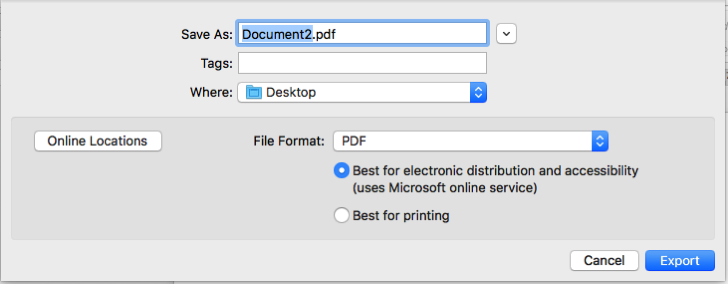
    Use the Save As command and select PDF and you should see an option for “Best for electronic distribution and accessibility”


    PDF Options


    As hinted with he option, the file is sent to a Microsoft Service Server for conversion. The result is a properly tagged PDF with active links!

    (Something I’ve been hoping for since the release of Office X and the possibility to export as PDF in Word…)

  • Doing your dissertation with Microsoft Word: A comprehensive guide to using Microsoft Word for academic writing (by Jacques Raubenheimer)

    Introduction

    Throughout my academic training, I’ve had to write a number of reports and memos of all sorts. As an undergrad during my PhD training, I wrote scientific articles of various complexity, but it’s only really when I had to put together my Thesis defense that I realized that I wouldn’t make it unless I took a serious look at how my workflow could be improved.
    A thesis defense in my field is a long and complex manuscript with a detailed introduction section providing a thorough general background on just about everything even vaguely related to what you’ve been studying, then you insert your publications and some sort of analysis of your work and how everything is supposed to fit together to make a “thesis”. It’s long, complex, structured and illustrated. It also needs to integrate previous work from other manuscripts. A nightmare in perspective if you want things to be kept in a somewhat decent shape.
    Back then, I already had some general knowledge of what could be achieved in Word, but I didn’t know much beyond the basic formatting options. Fortunately for me, at that time, software like Microsoft Word still came with a printed manual. I had bought the Academic version of Word 6 and had the very nice (and heavy) manual that came with the set of I-can’t-remember-how-many floppies (the rectangular plastic thingies that stored programs in these days…). I read that book from cover to cover (literally) and used my newly acquired knowledge to implement proper style management and image placing in the excruciating task that a thesis defense represents.

    General overview

    Needless to say that interest was piqued when I was contacted to review Jacques Raubenheimer’s guide. The book promises to help people like me write academic manuscripts using Microsoft Word.
    This book is indeed quite extensive: 546 pages covering just about every function and command you can think of in Word, providing a number of captures of the user interface: Big emphasis on the term Comprehensive in the tagline. The book is focused on using Word 2007 or 2010 for Windows, but you’ll be just fine with version 2013 that just came out, or using an equivalent Mac version of Microsoft Office. There are a few user interface differences between the Mac and the Windows version, but I don’t see it as a major throwback as the main aspect of the book, as far as I am concerned, is to learn how to better use the program to the full extend of its capacities to put a long and complex manuscript together. You could even easily adapt the same general knowledge to other related software like Pages or LibreOffice for instance. There is far more in this book than a simple detailed description of the various commands available in Word. It’s more of a guide to structured documents, styles and managing layout, with a hint of typography to make sure it all looks sharp.
    The tagline for the book also mentions “a guide for Academic writing”. While it seems to me like it is indeed perfectly adapted for academic writing, I think its scope can easily be broadened to include writing any form of long and complex manuscript, being legal or technical for instance.

    More specifically…

    While I read the book from cover to cover for the purpose of this review, I’m not sure everybody needs to. Depending on your level of expertise with Microsoft Word, you might want to focus on specific chapters and only browser over the others. It’s also a good source for references if ever you are experiencing difficulties with any specific aspect of how you want to manage your document.
    The immersion in the book follows a somewhat progressive slope. The first chapters describe general notions about Word itself and its user interface, then some information about typography and page layout. The following chapters go through inputting text and automating the process, but the real meat starts (as far as I am concerned) with Chapter 5. From then on, the book becomes more technical and covers all important aspects for a complex manuscript: Templates, styles, page layouts, numbering, tables of contents, search and replace, inserting tables and figures (with legends), Math equations, and everything all the way down to printing the manuscript.
    Chapter 13 covers inserting and managing citations. It properly describes everything that can be done in Word itself (including Word’s Citation Management tool), but third-party citation managers (EndNote, Reference Manager, Zotero…) are only briefly mentioned. While going into the details of the possibilities of any of these applications could be worth a full book in itself, the use of a software like EndNote in academic writing is so generalized and so crucial that I would have thought it’d be worth a little more attention.

    Overall…

    I personally enjoyed reading the book. It took me forever — really (I wanted to read it all before I could formulate a proper opinion), but it was well worth it. It would have made my life tremendously easier if the book had been available when I wrote my thesis. A very good and detailed reference guide you can go to at any time if ever you want to improve on your skills with any aspect of what you’ll need to master to write a proper dissertation. It will help save a significant amount of time over the years, whether you’re writing a full thesis, a book or a simple document of a couple of pages or less.
    The book is easy to read and well organized. You can jump to any section of the book and find all the details you need to master about the feature of your interest at the moment.
    In addition, the author offers a Word (for Windows) add-on that will bring up a new tab in the Ribbon to provide easy access to some very useful functions for document management, styles, bookmarks, reviewing, etc.: Word uTIlities
  • Antidote RX v8

    (in French since the application is mostly directed at people who at least understand French)

    Antidote RX vient d’être mis à jour en version 8.
    J’avais parlé précédemment de cette excellente application permettant de corriger le français en s’intégrant dans de nombreuses applications (dont Office).
    Au menu, de nombreuses nouvelles locutions, des corrections de bogues divers et une intégration améliorée à de nombreuses applications.
    Les notes de la mise à jour sont ici.

  • Extract media files from PPT, Word, etc, / Extraire des fichiers multimédia de PPT, Word, etc.

    Once in a while, I am send a Word or Excel document with a bunch of pictures in it. Sometimes, I need to get these pictures (usually to modify them, or reduce the file size, etc). There is no really easy way to do this in Office. Of course, you can copy and paste the image from Office to whatever image editor application you want to use, but you never know what format the image was in, etc… It’s usually not a lot of fun.

    I was messing around with one of these files today and figured out two ways to do it.
    1) Use FileJuicer. This great application can also extract media files from a lot more file formats (and from applications).
    2) For Office 2007/8 files, duplicate the file to work on a copy, select the copy in the Finder, press Cmd-I to get the information on it, remove the .docx or .pptx extension and replace it with .zip (Office 2008 files are nothing more than an XML file, with additional folders for embedded data, compressed as .zip and with a specific extension). When you close the Information panel, the Finder will ask you whether you are really really sure, and you can say Yes.You can then double-click it to reveal it’s inner structure… and all the embedded media files in a “media” subfolder 🙂


    De temps à autres, on m’envoie un document Word ou PowerPoint contenant tout un tas d’images. J’ai parfois besoin de récupérer ces images, de les modifier, les réduire, etc… Il n’existe pas de moyen réellement simple de récupérer ces fichiers depuis les documents en question. Bien sûr, je peux copier et coller dans l’éditeur de mon choix, mais on ne sait jamais dans quel format les fichiers étaient, on a donc tout un tas de difficultés.

    Je travaillais à la question aujourd’hui et j’ai trouvé deux solutions
    1) Utiliser FileJuicer. Cette excellente application peut extraire tout fichier incorporé dans les documents Word ou PowerPoint (et bien d’autres encore).
    2) Pour les fichiers Office 2007/8, faites une copie du fichier, sélectionnez-là dans le Finder, utilisez le raccourcis Cmde-I pour afficher les informations dans dans ce panneau remplacez l’extension .dox ou .pptx en .zip (Les fichiers Office 2008 ne sont rien de plus qu’un fichier XML, avec des dossiers liés pour les données associées, le tout compacté en .zip et avec une extension spécifique). Refermez le panneau des informations et le Finder vous demandera si vous êtes vraiment vraiment certain de vouloir faire ça. Une fois fait, vous pouvez double-cliquer le .zip dans le Finder pour le décompresser. Vous obtenez un dossier avec, dans un des sous dossiers, un dossier « media » contenant tous les fichiers associés dans leur format natif 🙂

  • EndNote X2 for Mac OS X

    Thomson Reuters just announced the release of EndNote X2 for Mac OS X.
    EndNote is a bibliography manager that integrates in Word (usually used for complex scientific manuscripts where you have to cite dozens of references in a specific format).

    The new version has an improved UI (still far from Papers IMHO), supports smart groups, and downloads PDFs automatically for your references.

    It’s an improvement for sure…


    Thomson Reuters vient d’annoncer EndNote X2 pour Mac OS X.
    EndNote est un gestionnaire de bibliographie qui s’intègre à Word (utilisé en général pour gérer des bibliographies complexes pour la rédaction d’articles scientifiques où vous trouvez des dizaines de citations qui doivent apparaître dans un format prédéterminé).

    La nouvelle version a une interface utilisateur amélioré et supporte par exemple les groupes intelligents (toujours pas au niveau de Papers IMHA). Elle peut également télécharger pour vous les PDF correspondants à vos références.

    C’est tout de même une amélioration…

  • Silence…

    (en français plus bas)

    I’ve been rather silent lately. It’s a bit sad since there was a lot of things to talk about. It’s just that I’ve been really overwhelmed and I just could not find the time to sit down and post here everything that was going on…

    • One of the most important news is that VBA is coming back in the next version of Office. That means that everybody who relies on VBA (and I know quite a few) will benefit from a rewritten VBA implementation as of Office… 20xx?
    • The Office for Mac team blog also announced that the Solver would be back for Office 2008 (free of charge) in mid-September.
    • The Office 12.1.1 update came out. This update fixes the creator type code issue that prevented people from opening their files through a simple double-click is gone.
      The problem was related to downloaded files getting (through the application downloading them) outdated creator codes. For some undisclosed reason related to security, Office was refusing to open them. You had to use the Open command in Office. Well this is history now (and so are the scripts I wrote to fix the issue by correcting the creator code of affected files).
      The update brings along the latest Auto-Updater update. This means that if you install Office 208 today, all you need is the 12.1.0 update, then the 12.1.1. You can skip the auto-update update if you have already downloaded these two.
      With the new version I’m not experiencing as many SyncServices issues as I used to. Not perfect, but better…
    • Office 11.5.0 is also out. A combo updater (so you can go straight from 10.0 to 10.5) bringing support for Office 2008 XML-based files if you also install the converters.
    • Messenger 7.0.1 is out. Not much to say about it.
    • Remote Desktop Connection 2.0 final is also out. The new version brings additional bug fixes and also a few improvements over the last beta.
    • The EndNote folks released their Word 2008 add-on. A major re-write with serious improvements (seems a lot faster on my Mac). Only for EndNote X1… The installer works well if both Office and EndNote are in /Applications and if the Word startup folder hasn’t been customized. It wasn’t the case for me so I had to perform the installation manually. Not hard, but it’s a bit of a pain.

    That’s it for now 🙂


    J’ai été assez silencieux dernièrement. Ce n’est pas que je n’avais rien à dire, mais j’ai été atrocement débordé et je n’ai simplement pas eu le temps de venir par ici pour poster des nouvelles.

    • Une des nouvelles les plus importantes est sans doute que le VBA sera de retour dans la prochaine version d’Office. Une excellent e nouvelle pour tous ceux qui se reposent sur ce language de macro commandes pour Office (et j’en connais un certain nombre). Cette version sera réécrite et on peut donc espérer des améliorations de performances du VBA dans Office …20XX ?
    • Le blog officiel des développeurs d’Office a également annoncé que le solveur sera de retour pour Office 2008 gratuitement à la mi-septembre.
    • La mise à jour Office 12.1.1 est disponible. Cette mise à jour fixe notamment le soucis lié aux codes créateurs qui empêchait l’ouverture par un simple double-clic de fichiers téléchargés par certaines applications. Ces applications ajoutaient un code créateur obsolète et pour des raisons liés à la sécurité (que Microsoft n’a pas expliquées) Office refusait de les ouvrir ainsi. Vous deviez passer par le menu Ouvrir dans Office.
      Tout ça est de l’histoire ancienne (tout comme le sont les scripts que j’avais écrits pour corriger le code créateur sur ces fichiers).
      Cette mise à jour apporte également la dernière version du module de mise à jour automatique. Cela sous-entend que pour mettre une version 12.0 à jour vous n’avez besoin que de la mise à jour 12.1.0 puis de la 12.1.1. Vous pouvez ignorer la mise à jour de l’auto-mise à jour si vous avez déjà téléchargé ces deux dernières
      Avec cette nouvelle version j’ai beaucoup moins de soucis avec les SyncServices. Pas parfait, mais mieux…
    • Office 11.5.0 est également disponible. Une mise à jour combinée qui permet au demeurant de passer directement de 10.0 à 10.5.0 et apporte le support pour les fichiers Office 2008 basées sur le XML pour peu que vous installiez les convertisseurs.
    • Messenger 7.0.1 est disponible. Pas grand chose à jouter.
    • Remote Desktop Connection 2.0 final est disponible. Quelque corrections de bogues et quelques améliorations par rapport à la dernière version béta.
    • Les développeurs d’EndNote on mis en ligne leur module externe pour Word 2008. Une ré-écriture massive du module d’intégration (qui semble bien plus rapide sur mon Mac). Uniquement pour EndNote X1. L’Installateur fonctionne correctement si Office et EndNote sont dans /Applications et si vous n’avez pas personnalisé le dossier d’ouverture au démarrage de Word. Ça n’était pas mon cas, et j’ai donc du faire l’installation à la main. Pas atroce, mais fastidieux. Grâce à cette mise à jour, nombre de chercheurs par ici ont pu abandonner Office 2004 et passer sous 2008.

    C’est tout pour maintenant 🙂

  • Word 2008 blog (in French/en français)

    (Since this is about a site in French, I’ll post the rest of this post in French too)

    Yves Cornil, un des MVP pour Office:Mac vient de lancer un nouveau blog sur Word 2008
    Beauoucp d’information sur Word (qui restent pour beaucoup également valables pour les précédentes versions). Vous trouverez notamment des informations pratique sur la façon dont on peut effectuer un nombre important de mises en page.
    À visiter donc 🙂